
Personal Rooms for Instant Collaboration
Reach your team members in just a couple of seconds and solve matters in that moment. That's what personal rooms in Cosmos deliver—your dedicated desk in a virtual office where teammates know exactly where to find you.
Sending meeting links is a pain. Remote teams waste 3+ hours per week just scheduling meetings for quick questions. Personal rooms eliminate this friction by recreating the natural accessibility of a physical office where collaboration happens in seconds, not hours.
What is it?
Personal rooms are dedicated spaces you claim as your own desk in Cosmos. When you set a room as home, it displays as "[Your Name]'s Room" for everyone in your space, and you automatically spawn there every time you join—creating a home base where teammates know where to find you.
.png&w=3840&q=75)
Why use it?
- Let your team see when you're at your desk so they know when you're available
- Navigate back to your desk with one click or Cmd/Ctrl + H from anywhere in Cosmos
- Control who can join you with Open, Knock Required, or Do Not Disturb modes
- Spawn automatically at your desk when joining—no navigation needed
- Reach teammates in seconds instead of messaging, waiting for replies, and coordinating schedules
How it works
Navigate to any meeting room and click Set Home in the bottom toolbar. The room name automatically changes to "[Your Name]'s Room" for everyone in your space, and you'll spawn there every time you join Cosmos.
.png&w=3840&q=75)
From anywhere in Cosmos, click Go Home in the bottom toolbar (or use Cmd/Ctrl + H) to instantly return to your personal room. To change your personal room, click the arrow next to Go Home, select Reset Home, then navigate to a new room and set it as home.
Room Access Controls
Control who can join your personal room with three access modes:
🟢 Open - Anyone can join your room and calls start automatically. Perfect for collaboration hours when you're available for quick chats.
🟡 Knock Required - People must knock before entering. You'll receive a notification to accept or deny their entry request. Great for focused work whilst remaining reachable.
🔴 Do Not Disturb - No one can join your room. Ideal for deep work sessions or when you're unavailable.
To change your room access, click the Room Settings icon in your personal room and select your preferred access level. Being visible doesn't mean being available to talk—you control when you're open for conversations.
Instant Conversations at Your Desk
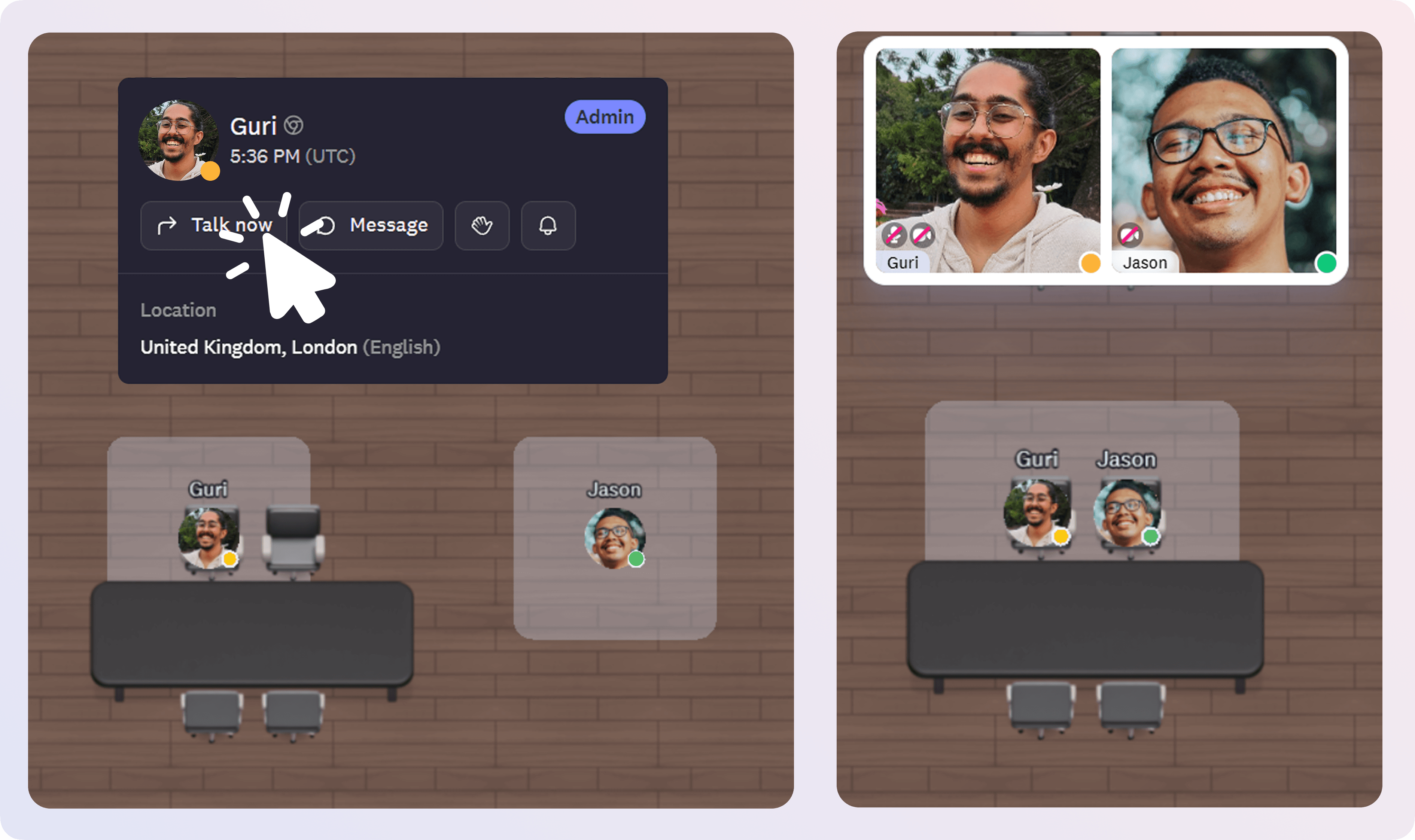
When you're at your personal room with access set to Open, teammates can start conversations instantly by walking up to your desk or clicking your room on the floor plan. Calls start automatically—no link sharing, no platform switching, no scheduling friction.
You can also use Invite to Talk to send direct invitations to your room, or share your unique Personal Room link with external collaborators so they can join you directly without navigating your space.
One-Click Navigation
Return to your home desk instantly from anywhere in the space rather than searching for where you were working. Click Go Home in the bottom toolbar or use the keyboard shortcut (Cmd/Ctrl + H) to jump to your personal room in one click. This saves time and reduces cognitive load—you always know how to get "home."
.png&w=3840&q=75)
Why it matters
- Stop wasting time on scheduling friction - Sending meeting links is a pain: message, wait for reply, send meeting links. Personal rooms let you reach team members in just a couple of seconds instead of the 3+ hours per week teams waste scheduling meetings for quick questions.
- Visibility replaces guesswork - When you're at your desk, teammates know you're there. When you're away, they know not to expect you. No more messaging into the void or wondering if someone's really available.
- Be accessible to your team - "I wasn't accessible. My team didn't feel like they could come to me and talk." Personal rooms solve this by giving teammates a place to walk up to you naturally, just like a physical office.
- Automatic spawning saves time - Join Cosmos directly at your desk every time instead of starting in a random location and navigating to where you need to be. For frequent users, this saves 45+ minutes per week.
Pro Tips
- Position your personal room near teammates you collaborate with frequently to create natural proximity
- Set your access to Knock Required during focus time so you remain reachable but maintain control over interruptions
- Customise your room, it helps new team members remember who you are and creates a sense of ownership
- Use keyboard shortcut Cmd/Ctrl + H to return home instantly rather than clicking through the interface
- Share your Personal Room link with external collaborators for recurring one-on-one check-ins